manav sampada up login
If you work for the Uttar Pradesh government, you have probably heard colleagues talk about Manav Sampada. It is the state’s online human resource management system, and it has changed how employees apply for leave, check attendance, view salary details and keep their service records. Most of these tasks begin with one step: the Manav Sampada UP login.
This guide explains what the portal is, who can use it, how to log in step by step, how to reset a forgotten password, what services you get after logging in, and how to fix the most common problems. Whether you are a new employee receiving your credentials for the first time or a long-time user who needs a quick refresher, everything is covered below in simple language.
Table of Contents
What Is Manav Sampada UP?
Manav Sampada is an Electronic Human Resource Management System (eHRMS) built for government departments. In Uttar Pradesh, it works as a single online platform where employees and their reporting officers handle service-related work that used to depend on paper files and manual registers.
Overview of the eHRMS Platform
The word “Manav Sampada” means human resources. The portal keeps each employee’s official record in a central digital database. Once your details are entered by your department, you can view them, request services and track the status of your applications from your computer or phone.
Who Developed the Portal
The Uttar Pradesh Manav Sampada portal was developed by the National Informatics Centre (NIC), Uttar Pradesh state centre. It runs on the state’s official government domain, which is important to remember when you log in, because many unofficial websites copy its content.
Why the UP Government Introduced Manav Sampada
Before digital systems, employee records were stored in physical service books. Updating them was slow, errors were common, and finding an old entry could take days. Leave applications moved from table to table in paper form, and approvals depended on whether a file reached the right desk on time.
Manav Sampada was introduced to solve these problems. The main goals are:
- Replace paper-based service records with a secure digital record
- Bring transparency to leave, transfer and promotion processes
- Reduce delays in approvals by routing requests online to the reporting officer
- Give employees direct access to their own information at any time
- Help departments keep accurate, up-to-date data about their workforce
The portal is used by a very large number of state employees, which shows how central it has become to everyday government administration in Uttar Pradesh.
Key Features and Services Available After Login
Once you complete the Manav Sampada UP login, you reach a personal dashboard. The exact menu can differ slightly depending on your department and role, but the following services are the core of the system.
Employee Profile and Digital Service Book
Your profile holds your personal and official details. The e-service book is a digital version of your service record. It brings together information such as your appointment, postings and other career entries. Employees can open it after login to check whether their details are correct and report any mistakes to their department.
Online Leave Management
Leave management is one of the most used modules. Employees can apply for different kinds of leave, including casual leave, earned leave, medical leave and special leave. Your reporting manager can approve, reject or cancel the request through the same system, and you can follow the status without visiting the office.
Attendance Records
The portal lets employees view their attendance and leave balance. This is useful for checking how many leaves remain and for confirming that your attendance has been recorded correctly.
Salary and Payroll Information
Salary-related information is available through the system, and employees can see and download records when they need them for official or personal purposes, such as loan applications.
Transfers, Promotions and Retirement
The platform also supports digital handling of transfers, promotions and retirement-related processes, as well as areas such as training and performance appraisal. This reduces paperwork and makes these processes more transparent.
Online Grievance Support
The portal also provides facilities for raising grievances online, so employees do not need to depend only on written applications.
Manav Sampada UP Login Details at a Glance
Here is a quick summary of everything you need to know before logging in.
| Item | Details |
|---|---|
| Portal name | Manav Sampada (eHRMS), Uttar Pradesh |
| Developed by | National Informatics Centre (NIC), UP State Centre |
| Official website | https://ehrms.upsdc.gov.in |
| Who can log in | Uttar Pradesh government employees and reporting officers with department-issued credentials |
| Login option | Click “eHRMS Login” on the homepage |
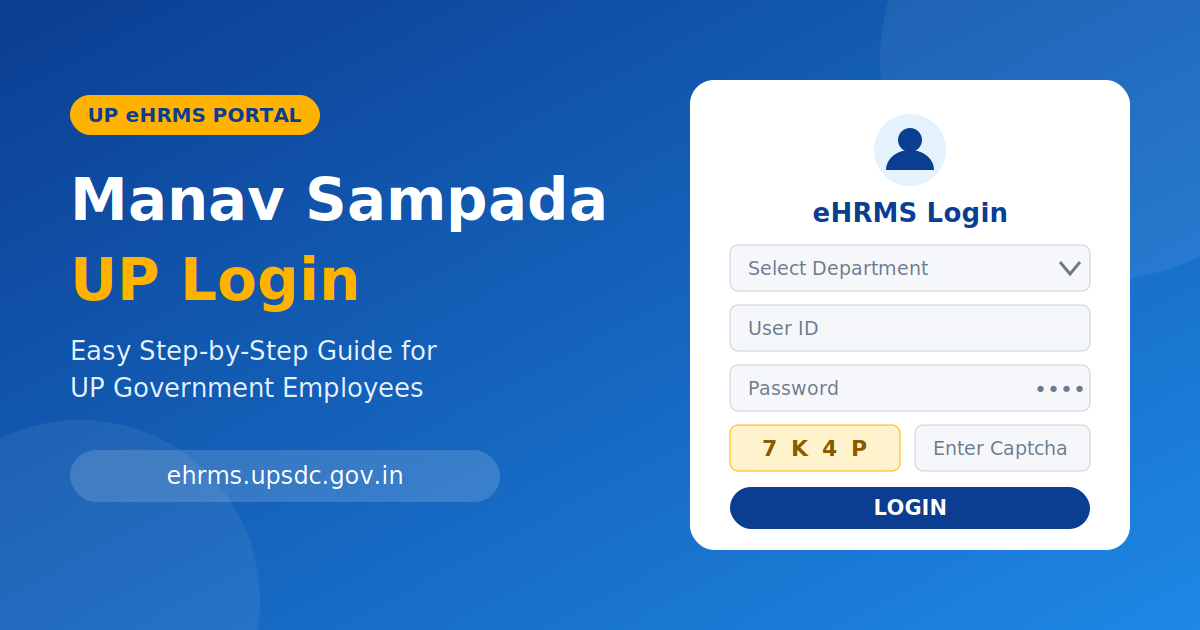
| Required information | Department, User ID, Password, Captcha |
| Registration | Done by your department; employees cannot self-register |
| Forgot password | Use the “Forgot Password” link on the login page |
| Password recovery | New password is sent to your registered email ID |
| Mobile app | m-Sthapana (download link and manual on the portal homepage) |
| Main services | Leave, attendance, salary details, e-service book, transfers, grievances |
Step-by-Step Manav Sampada UP Login Process
Logging in is simple if you have your credentials ready. Follow the steps below carefully.
Before You Begin
Make sure you have the following:
- Your User ID (often linked to your employee ID) provided by your department
- Your password
- A device with a working internet connection and an updated browser
- Your registered email ID, in case you need to reset your password
Login Steps
| Step | Action |
|---|---|
| 1 | Open your browser and go to https://ehrms.upsdc.gov.in |
| 2 | On the homepage, click the “eHRMS Login” option |
| 3 | Select your department from the drop-down list |
| 4 | Enter your User ID and password |
| 5 | Type the captcha text exactly as shown |
| 6 | Click the “Login” button |
| 7 | Your dashboard opens, where you can use the available modules |
If the captcha is hard to read, refresh it and try again. Passwords are case-sensitive, so check that Caps Lock is off.
First-Time Login Tips
If this is your first login, change the password you were given to a strong one that only you know. A good password mixes upper and lower case letters, numbers and symbols, and is not based on your name or date of birth. Also confirm that your email ID and mobile number on the portal are correct, because password recovery depends on them.
How to Reset a Forgotten Manav Sampada Password
Forgetting a password is very common, especially if you only use the portal occasionally. You can recover access in a few steps:
- Go to the Manav Sampada login page.
- Click the “Forgot Password” link below the login fields.
- Enter the details the page asks for, such as your User ID.
- Submit the request and check your registered email ID.
- Use the new password you receive to log in, then change it to one of your own choice.
If you no longer have access to your registered email, or the email never arrives, contact your department’s nodal officer or the person responsible for the eHRMS in your office. They can help update your details.
Manav Sampada Registration: How Does It Work?
A common question is how to register on the Manav Sampada UP portal. Unlike many websites, you cannot create an account yourself. Registration is handled by your department, which enters your information into the system and issues your User ID and password.
This means:
- New employees should ask their office or department head for their login details after joining
- Mistakes in your name, designation or other details must be corrected through your department
- Employees who change departments or postings should confirm that their access still works
Be careful of websites that claim to offer registration for a fee or ask for personal documents. The official process runs through your department.
How to Apply for Leave on Manav Sampada
Online leave application saves a lot of time. The general process is:
Submitting a Leave Request
- Log in to the portal using the steps above.
- Open the leave section from the dashboard menu.
- Choose the type of leave you want, such as casual, earned or medical leave.
- Enter the start date, end date and the reason for leave.
- Upload supporting documents if they are required, for example a medical certificate.
- Submit the application.
Tracking Approval
After submission, your request goes to your reporting manager. You can return to the leave section to see whether it has been approved, rejected or cancelled. Plan important leave in advance so that your officer has enough time to act.
How to View Your e-Service Book
Your e-service book is one of the most valuable features of the portal. To open it:
- Complete the Manav Sampada UP login.
- Look for the service book or employee service book details link on your dashboard.
- Open it and review the entries.
Check your entries carefully and compare them with your documents. If you notice a wrong date, designation or posting, report it to your department so that it can be corrected.
m-Sthapana: The Manav Sampada Mobile App
For employees who prefer using a phone, there is a mobile app called m-Sthapana. The app and its user manual can be downloaded from the Manav Sampada portal homepage. It is best to use the link provided on the official portal so that you do not install a fake app.
The app can make it easier to carry out routine tasks without opening a computer. As with the website, you need valid credentials from your department.
Common Manav Sampada Login Problems and Solutions
Sometimes the login does not work on the first attempt. Here are the usual causes and fixes.
| Problem | Possible Reason | Solution |
|---|---|---|
| Invalid User ID or password | Typing mistake or wrong department selected | Re-enter carefully, check Caps Lock, and confirm the department in the drop-down |
| Captcha error | Captcha typed incorrectly or expired | Refresh the captcha and type it again |
| Page not loading | Slow internet or server load | Try again later, preferably outside peak office hours |
| Forgot password | Password not remembered | Use the “Forgot Password” option and check your registered email |
| Reset email not received | Wrong or inactive email on record | Check spam folder, then contact your department to update the email |
| Account not working | Credentials not yet issued or activated | Contact your department’s nodal officer |
| Browser issues | Old browser, cache or cookies | Clear cache, update the browser or try another one |
If none of these steps help, speak to the officer in charge of eHRMS in your department. They can check whether your account is active and linked to the right office.
Safety Tips for Using the Portal
Your service record and salary information are sensitive, so protect your account:
- Use only the official website address, ehrms.upsdc.gov.in, and avoid clicking login links from random messages or blogs
- Never share your User ID, password or captcha with anyone, even a colleague
- Change your password regularly and avoid reusing passwords from other accounts
- Log out after use, especially on shared or office computers
- Do not pay anyone for “registration” or “activation” of your account
- Be careful with fake apps, and download m-Sthapana only through links on the official portal
Benefits of Manav Sampada for Employees and Departments
The portal offers advantages on both sides.
Benefits for Employees
- Access to personal and service information at any time
- Online leave applications without paperwork
- Faster tracking of requests and approvals
- Easy viewing of salary and attendance information
- Digital service book that is easier to keep accurate
Benefits for Departments
- Centralised and organised employee records
- Fewer manual errors and less paperwork
- Faster decision-making based on current data
- More transparency in leave, transfers and promotions
Frequently Asked Questions About Manav Sampada UP Login
What is the official website for Manav Sampada UP login?
The official portal is https://ehrms.upsdc.gov.in. Always type or bookmark this address instead of relying on search results alone.
Can I register on Manav Sampada by myself?
No. Registration is done by your department, which provides your login credentials.
What should I do if I forget my password?
Click “Forgot Password” on the login page and follow the instructions. A new password is sent to your registered email ID.
Is there a mobile app for Manav Sampada?
Yes. The mobile app is called m-Sthapana, and it can be downloaded from the homepage of the official portal.
Can I update my personal details on the portal?
Some profile details can be viewed and updated after login, but official service entries are usually corrected through your department.
Why is my login not working?
The most common reasons are a wrong department selection, a typing error in the password or captcha, or an account that has not been activated. Check these first, then contact your department if the problem continues.
Conclusion
The Manav Sampada UP login is the entry point to a system that has made government service management simpler, faster and more transparent for employees in Uttar Pradesh. With your department-issued credentials, you can apply for leave, check attendance and salary details, view your digital service book and track your requests, all from one place.
Remember the key points: use only the official website, select the correct department, keep your password secure, and contact your department’s nodal officer when you need help with registration or recovery. Following these simple practices will make your experience with the portal smooth and safe.
Note: Portal menus and processes can change over time, so always confirm the latest details on the official Manav Sampada website or with your department.
About the Author